
Why Google Sheets
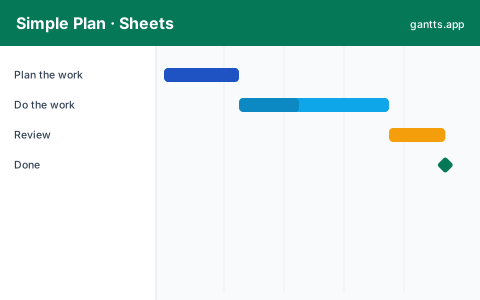
Google Sheets gives you the same stacked-bar Gantt as Excel, but with real-time collaboration and a link you can share with anyone. It's a solid choice when several people need to view or update the plan and you don't want to email files around. This template is built to import cleanly, the chart, formulas and formatting survive the upload. For the full setup walk-through, see our guide on how to make a Gantt chart in Google Sheets.
What's included
- A task table with Task, Owner, Start date, Duration, End date and % Complete.
- A stacked bar chart that reads the table and draws the timeline.
- Phase groupings so you can organize work into stages.
- Milestone rows for key dates and deliverables.
- Both .xlsx and CSV downloads so you can import whichever Google Sheets handles best for you.
Who uses this template
Teams and individuals who collaborate in Google Workspace use this to build a shared Gantt chart without add-ons. Import the CSV or .xlsx into Sheets, or edit online and export, and you get a live schedule that colleagues can view and update together, ideal for classroom groups, startups, and remote teams on a budget.
How to customize it
- Import first. Get the file into Google Sheets via File → Import so you're editing your own copy.
- Replace the sample data. Type your tasks, start dates and durations over the examples.
- Extend the range. Add rows inside the charted range and copy the formulas down so new tasks appear on the timeline.
- Share it. Use the green Share button to invite your team with view or edit access.
- Recolor the series from the chart editor to match your team's colors.
Tips for Google Sheets scheduling
- Use date-formatted cells. Make sure your start/end columns are formatted as dates so the axis scales correctly.
- Mind the import mode. "Replace spreadsheet" keeps the chart; pasting raw values can drop it. Import, don't copy-paste.
- No auto-dependencies here either. Like Excel, Sheets won't reschedule downstream tasks when a date slips, that's manual unless you use the online editor.
- Lock the header rows with View → Freeze so your phase labels stay visible as you scroll.
Related templates
- Excel Gantt chart template, the desktop-spreadsheet original.
- Simple Gantt chart template, a minimal starter to build from.
- Project management template, a fuller multi-phase plan.
Frequently asked questions
Does the Google Sheets Gantt chart need an add-on?
No. The template uses a built-in stacked bar chart and standard formulas, so it works with Google Sheets out of the box, no third-party add-on to install or authorize.
How do I import the template into Google Sheets?
Download the .xlsx or CSV file, then in Google Sheets choose File → Import, upload the file, and pick Replace spreadsheet or create a new one. The task table and chart come across intact.
Can multiple people edit the Google Sheets Gantt chart?
Yes. Once it is in Google Sheets you can share it and collaborate in real time, which is a key advantage over a desktop Excel file.
Is there an easier way than Google Sheets?
Yes. You can skip the spreadsheet entirely and build the chart in the free gantts.app editor, which handles dependencies and the critical path automatically and exports to Excel, PDF, PNG and PowerPoint.